How to Connect a Yamaha Digital Piano for Online Practice
P-45, P-125, YDP, or any USB-MIDI Yamaha, plug in, click Allow, and start getting graded in real time.
Yamaha makes some of the most popular digital pianos in the world, and almost all of them play nicely with Super Simple Piano's live grading. Here's the connection path for every common model.
USB MIDI (P-45, P-125, P-225, YDP series)
Most modern Yamaha digital pianos have a USB-to-host port (a USB-B socket on the back panel). Grab a USB-A to USB-B cable, plug:
Open Super Simple Piano in Chrome, Edge, or Opera. The first time, your browser asks for MIDI permission:
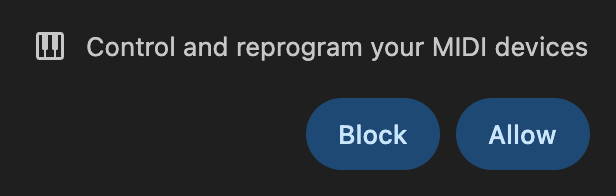
Click Allow. An indigo MIDI pill appears in the floating panel:
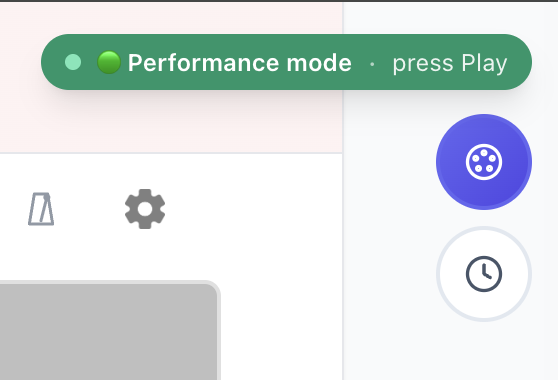
Every key you press is now graded in real time.
Bluetooth MIDI (P-525, CK-61, YDP-S55, newer YDP)
Yamaha's recent lineup includes BLE MIDI. Tap the Bluetooth button in the floating panel:
Pick your piano from the chooser. Done, no system-level Bluetooth setup needed.
No MIDI port? (PSR-E, older keyboards)
Older entry-level Yamahas like the PSR-E series have no USB or BLE MIDI. Tap the 🎤 Mic button instead, we'll listen through your microphone and grade what you play.
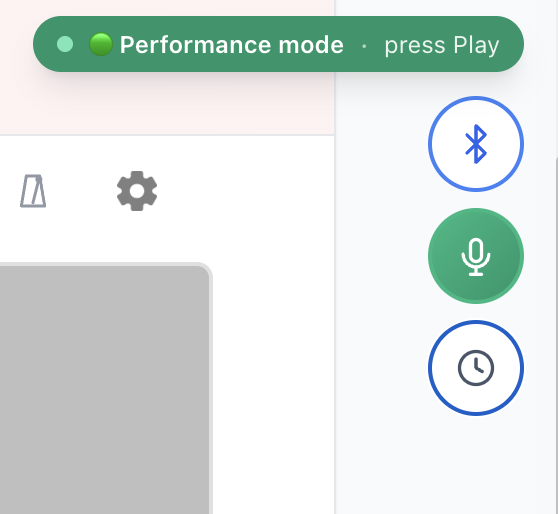
The song's audio is muted so we only hear your real piano.
Browser support
USB and Bluetooth MIDI work on Chrome, Edge, and Opera (desktop) plus Chrome on Android. iPhone, iPad, and Safari are mic-only, Apple blocks Web MIDI. See the full chart in Web MIDI in 2026.
---
Plug in, click Allow, and play. Read the full setup guide or try any song now.
Ready to start playing?
Put it into practice with thousands of color-coded, slow-down-able songs, free in your browser.