MIDI Keyboard Not Detected in Chrome? 6 Quick Fixes
Permission denied, wrong cable, or another app holding the device, here's the checklist.
Plugged a MIDI keyboard into Chrome and the indigo MIDI pill never appeared? Six common causes, in order of how often they're the actual problem.
1. Permission denied
The first time you connect MIDI, Chrome asks permission:
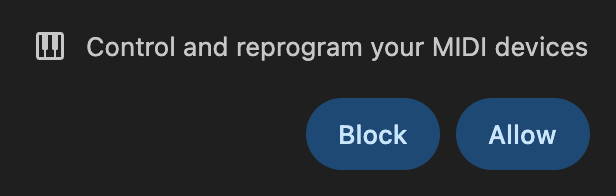
If you accidentally clicked Block, Chrome remembers, open chrome://settings/content/midiDevices and remove the site from the block list. Refresh the page and the prompt comes back.
2. Wrong USB cable
Some USB-A to USB-B cables are charge-only and don't carry data. They look identical to data cables. If you're not sure, swap with a known-working cable (like the one that came with a printer).
3. Hub or dock issue
USB hubs (especially unpowered ones) sometimes drop MIDI devices. Plug the cable directly into the laptop and refresh.
4. Another app holding the device
A DAW (Logic, GarageBand, Ableton) or a MIDI utility (MIDI Monitor, MIDI Pipe) can claim the device and prevent the browser from seeing it. Quit those apps and refresh the page.
5. Browser permission state stuck
Even with Allow clicked, occasionally the permission gets stuck. Open chrome://settings/content/midiDevices, remove the site entirely, refresh, and re-grant.
6. Browser doesn't support Web MIDI
If you're in Safari or Firefox, Web MIDI doesn't work, full stop. Switch to Chrome, Edge, or Opera. See the Web MIDI browser support chart for the full breakdown.
Still not working? Try Bluetooth or mic
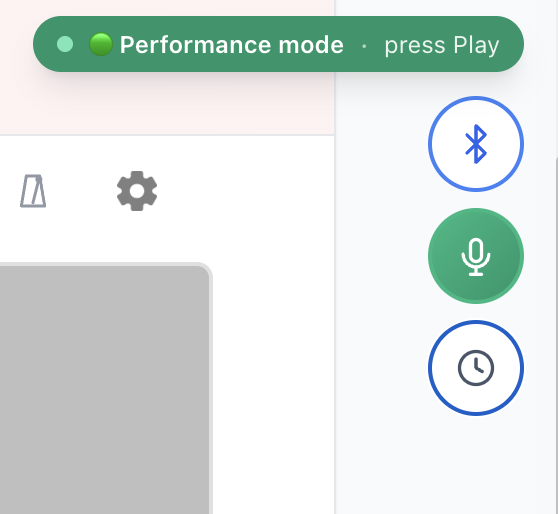
If the cable just won't cooperate, your piano probably has BLE MIDI, tap the Bluetooth button instead. Or use mic mode as a last resort:
---
Most MIDI issues are cable or permission related. Read the full setup guide or browse songs to test.
Ready to start playing?
Put it into practice with thousands of color-coded, slow-down-able songs, free in your browser.